Import Participants
The import participants process allows administrators to add participants to a session in bulk using a CSV or Excel file. Administrators can map file columns to HealthForms fields, assign external identifiers, group participants, schedule invitation delivery, preview import actions, and review final results before completing the import.
1. Participants can be added in bulk using the import option.
To begin importing participants, navigate to the Session Management page and click Import. This opens the participant import workflow.
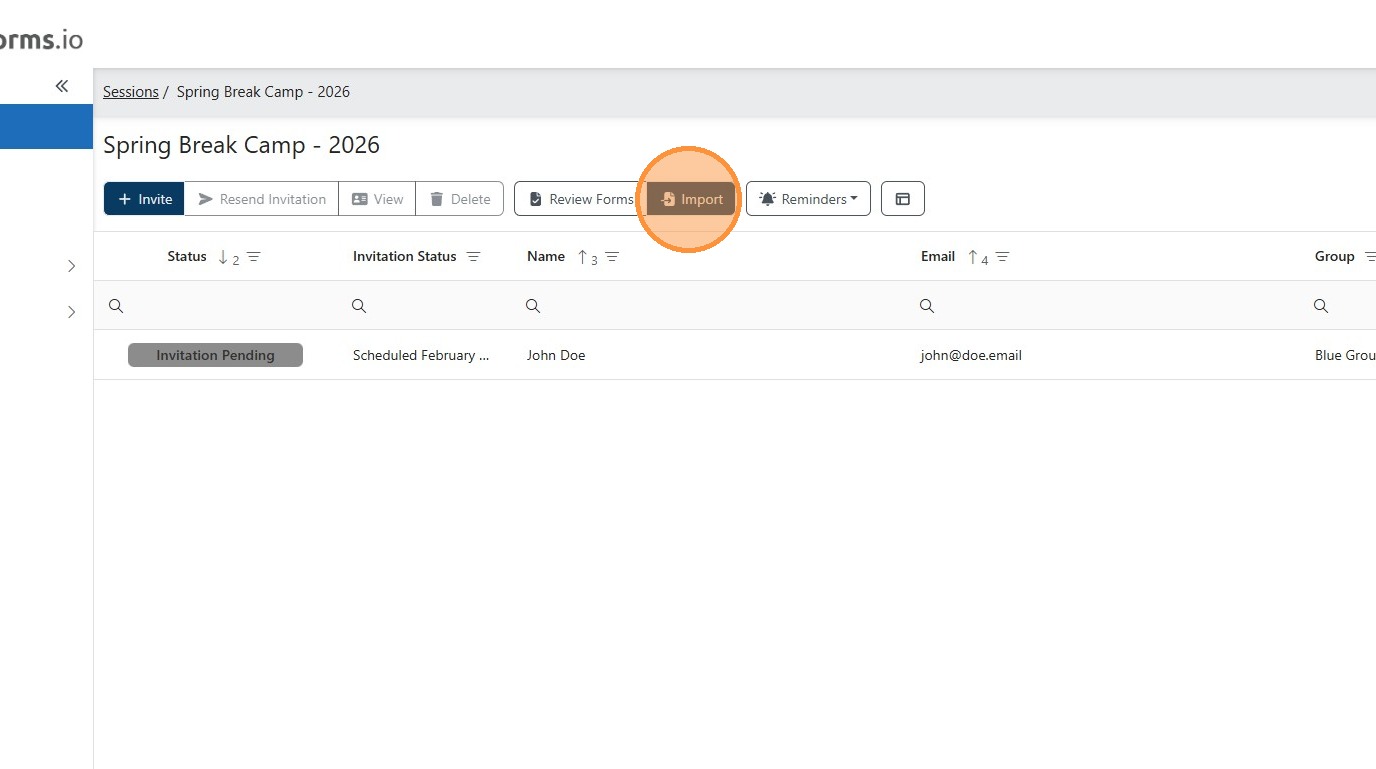
2. Select a CSV or Excel file to import participants. The file must include at least three required columns: first name, last name, and email address.
Additional optional columns may be included, such as Participant ID, Member ID, Group, and Invitation Send Date.
The first row of the file must contain column names. Additional columns may be included as long as they are labeled in the header row.
In the next step of the import process, you will be able to map each column from the file to the corresponding HealthForms field.
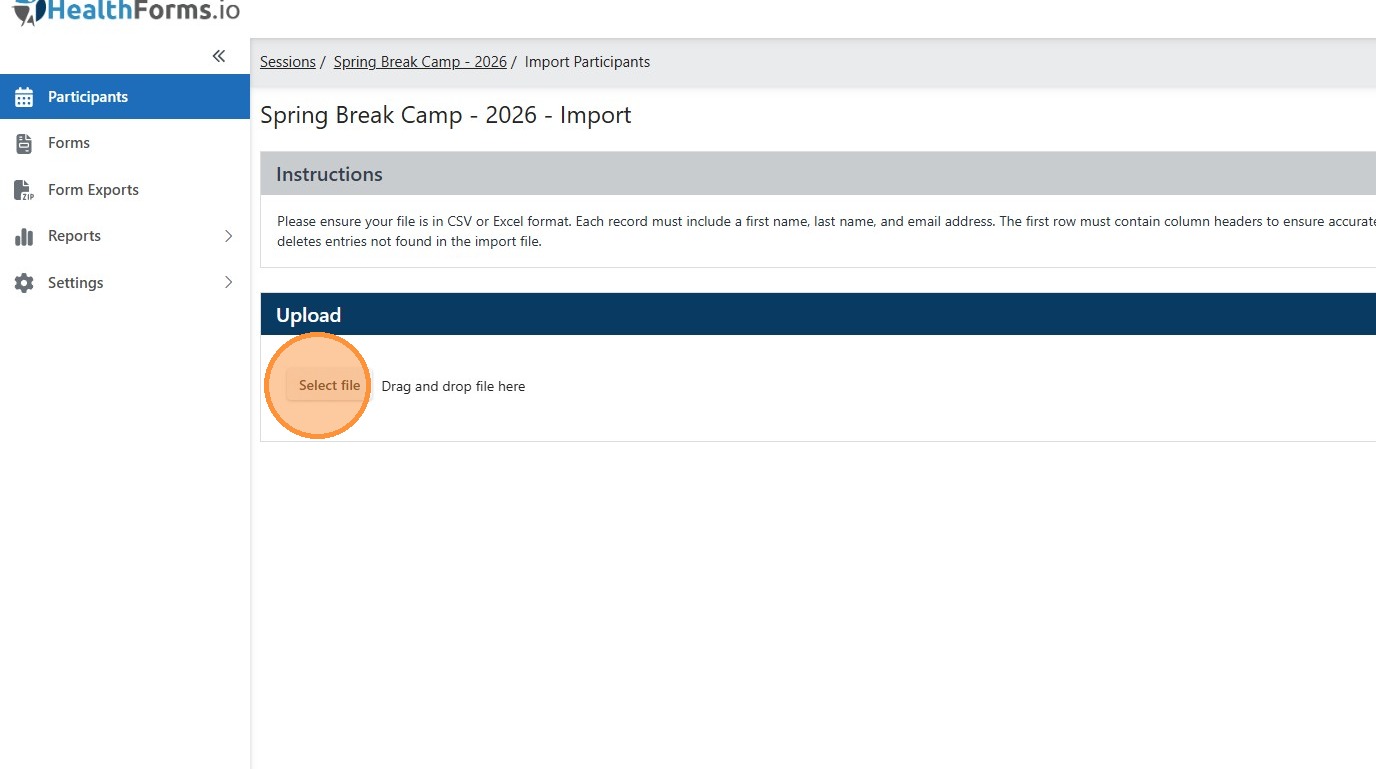

3. After uploading the import file, the next step is to map the file columns to HealthForms fields.
HealthForms will attempt to automatically map columns based on the column names in the file's first row. Review each mapped field to confirm it is correct.
If any fields are not mapped automatically, or if changes are needed, you can manually map each HealthForms field to a single column from the file. Review all mappings carefully before continuing.
All required fields must be mapped before the import process can proceed. Click Process Preview.
When the Import Preview is complete click "Go to Preview"
4. Once the preview has completed, the system displays each row along with the action the importer will take. Review the preview results to confirm they are correct. When you are ready to proceed with the import, click Continue.


5. Once the import is complete, the user is shown the same table as the preview, updated with the final results of the import. Review the resulting values to confirm the import was successful. When finished, click Back to Manager to return to the Session Management page.
Click "262180"
Related Articles
Session Editor
The Session Editor allows administrators to manage all aspects of a session after it has been created. From the Session Editor, users can update session settings, manage forms, organize participants into groups, assign permissions, send invitations, ...Add Participant
The manual participant process allows administrators to add individual participants directly to a session through the portal. Administrators can enter participant details, assign optional identifiers for integration with external systems, place ...Security - Roles & Permissions Guide
HealthForms Manager uses a granular permission system that allows organizations to precisely control what each user can access and do. Rather than broad "admin" roles, permissions are assigned individually and can be scoped to the entire ...Create HealthForms.io Session
During setup, you must provide a session name, a support email address for participant questions, active start and end dates, and select a form. Each session also requires choosing a form flow, which determines whether submissions are reviewed ...March 2025 Platform Improvements & New Features
We’ve released a major set of improvements designed to make managing forms, members, and workflows easier, faster, and more reliable. Below are the highlights of the most impactful updates. Form Packets Form Packets make it easy to organize forms and ...