Create HealthForms.io Session
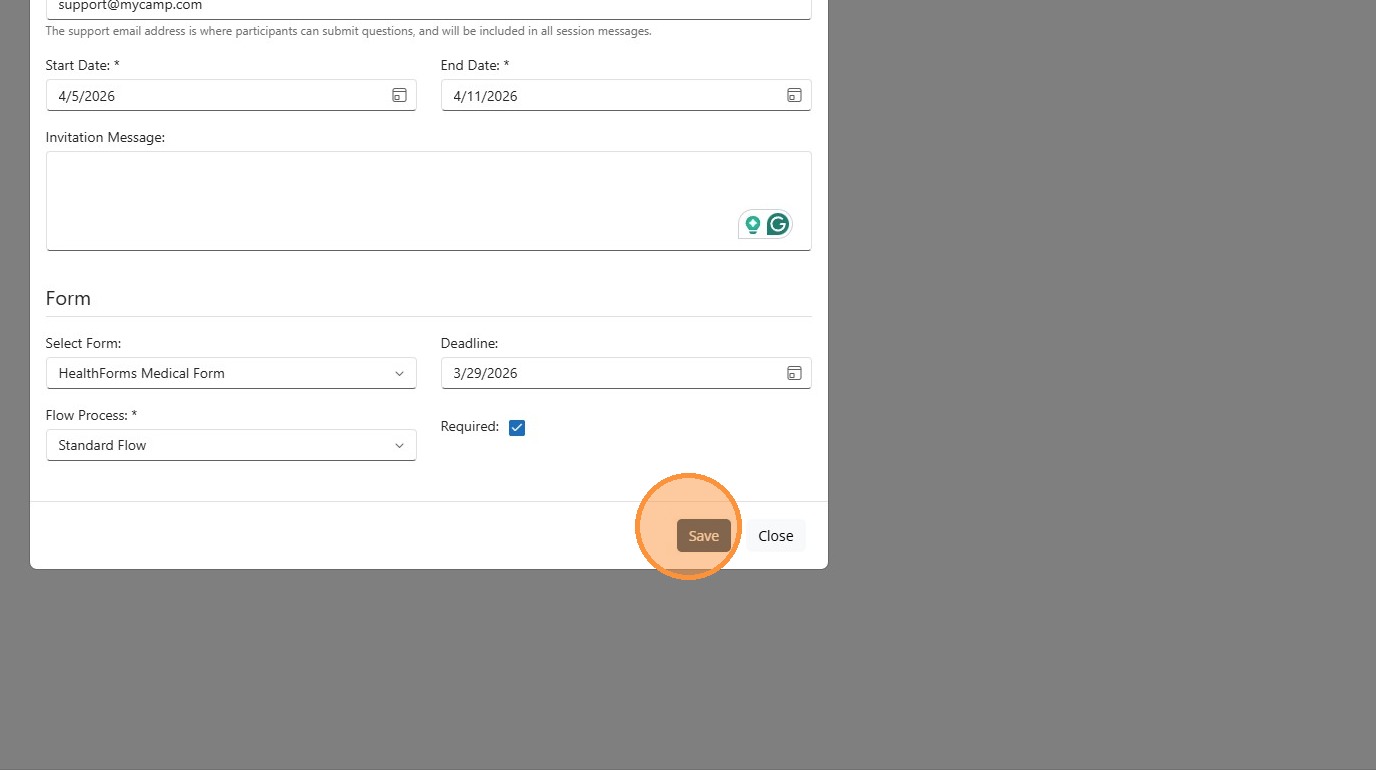
During setup, you must provide a session name, a support email address for participant questions, active start and end dates, and select a form. Each session also requires choosing a form flow, which determines whether submissions are reviewed manually or accepted automatically.
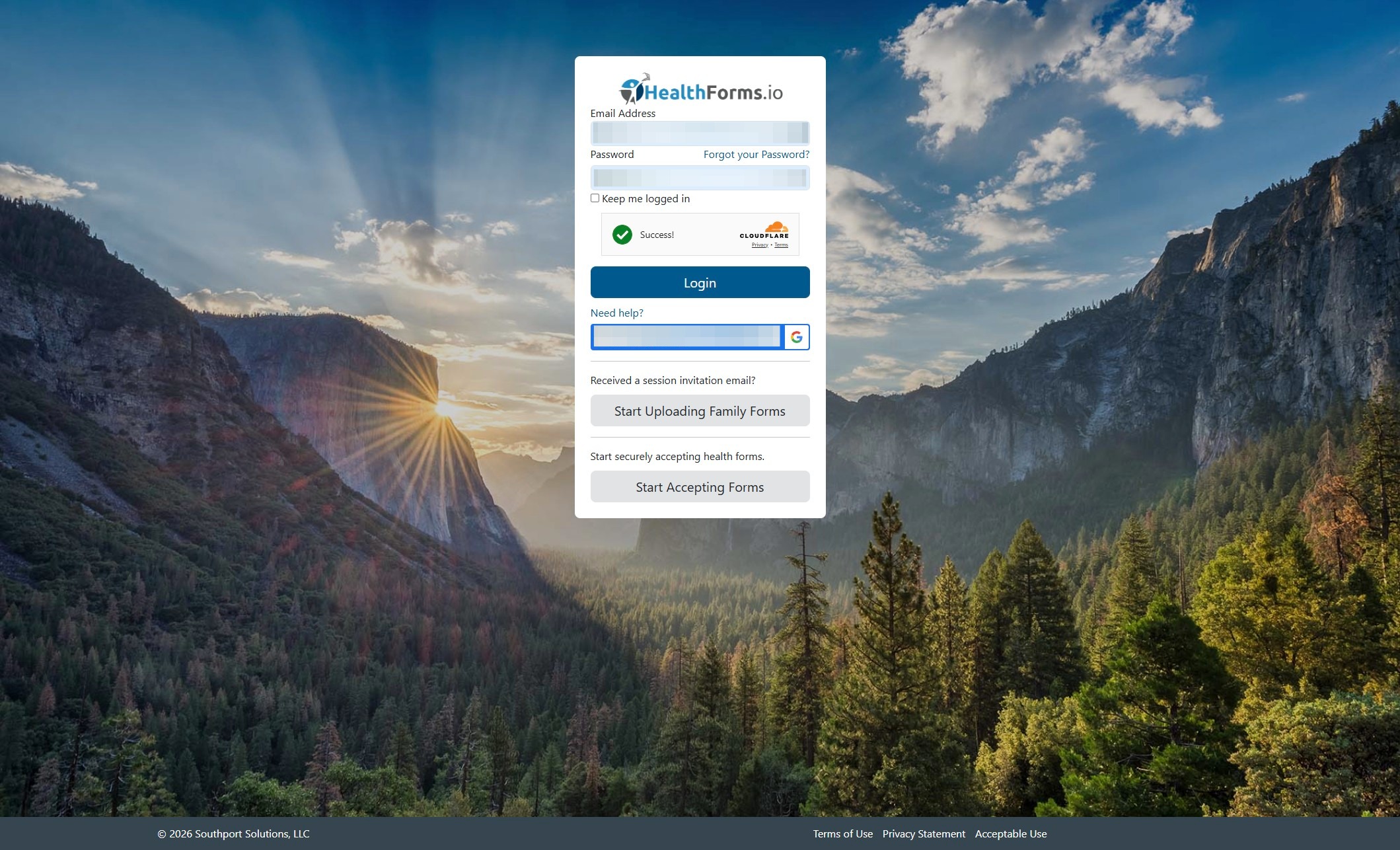
1. Navigate to https://app.healthforms.io/manage/ and login with your credentials.
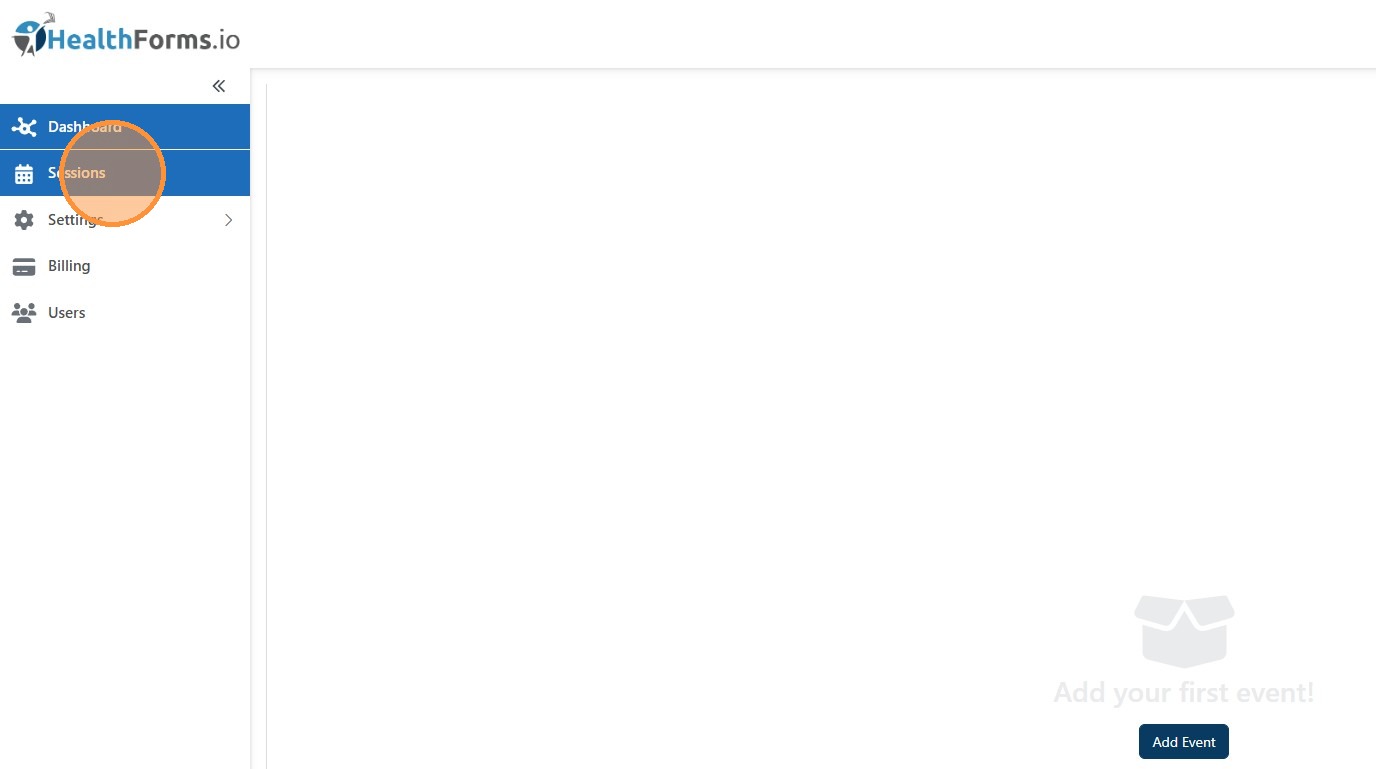
2. Click "Sessions"
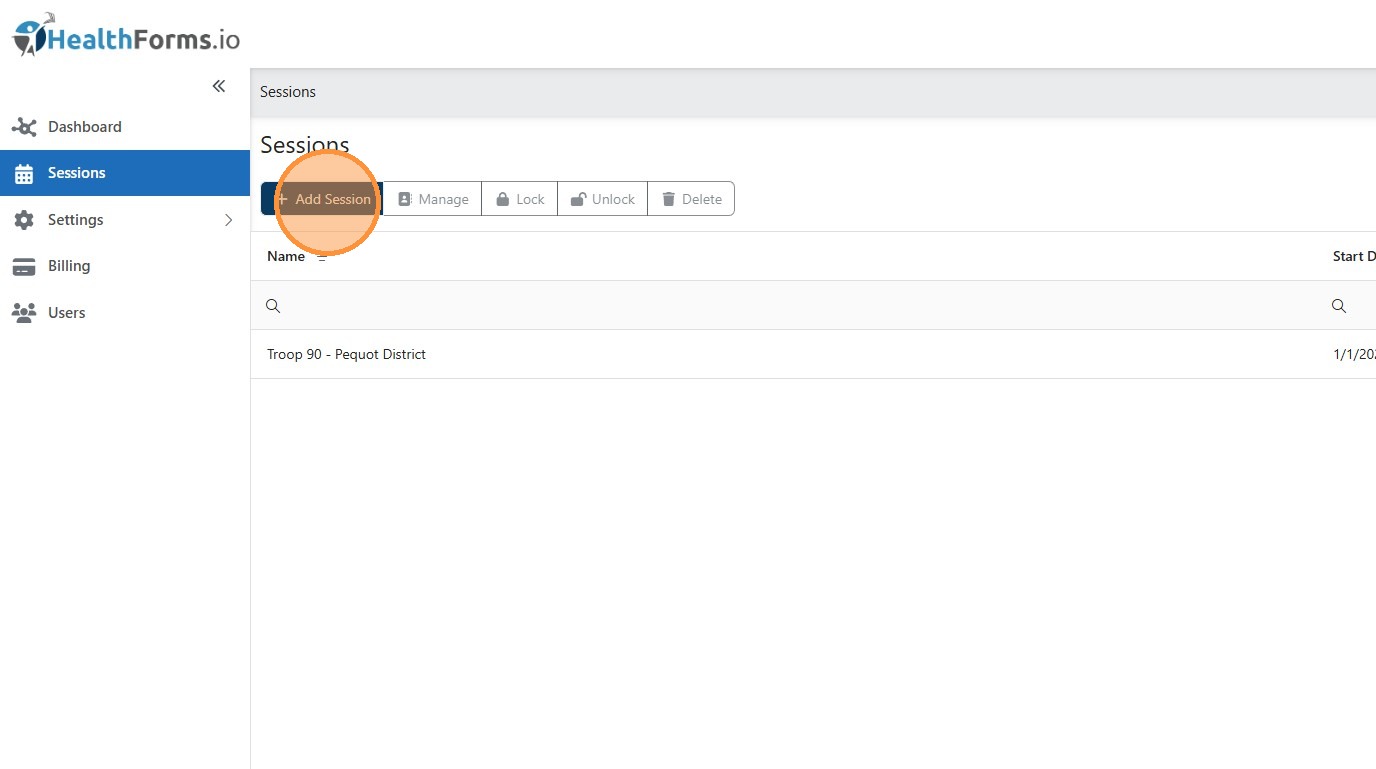
3. Click "Add Session"
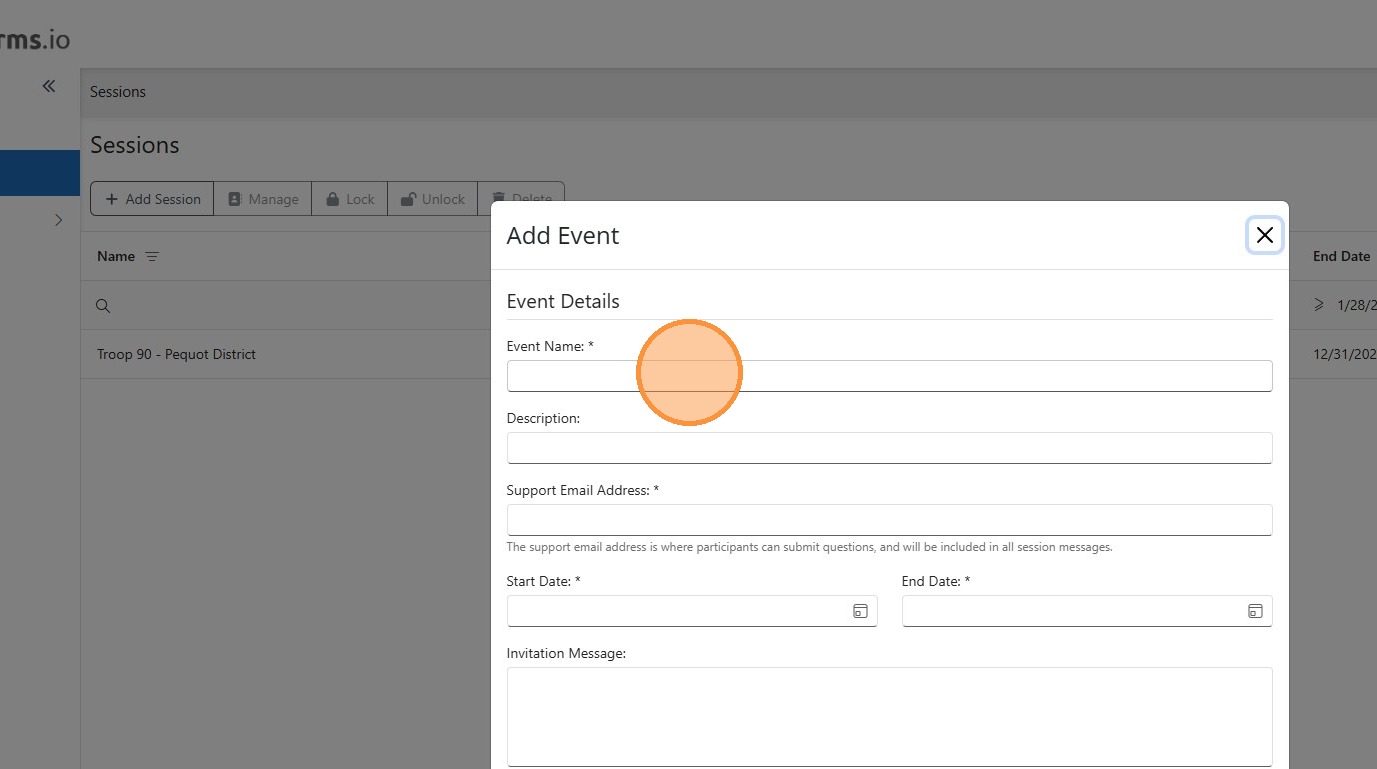
4. Required Fields
Session Name
Enter a clear, descriptive name so users can easily identify the session.Support Email Address
Used by participants to ask questions about the forms required for the session.
Ensure the email address is actively monitored.Start Date
The date the session opens.End Date
The date the session closes.
Users can only submit forms between the start and end dates.Form
Select the form that will be used for this session.Form Flow Options
When selecting a form, choose how submissions are processed.- Standard Flow
Requires a reviewer to review and approve the form before it is accepted. - Automatic Flow
Accepts the form immediately.
No manual review is required.
Select the flow option that best fits your review and approval needs.
- Standard Flow
5. Click "Save"
Related Articles
Navigating HealthForms.io Management App
HealthForms.io Management App is structured into two main sections to streamline your navigation and management tasks: Global Area: This area allows you to manage overarching settings that affect the entire platform. Key Features: Users: Add, remove, ...Session Editor
The Session Editor allows administrators to manage all aspects of a session after it has been created. From the Session Editor, users can update session settings, manage forms, organize participants into groups, assign permissions, send invitations, ...Security - Roles & Permissions Guide
HealthForms Manager uses a granular permission system that allows organizations to precisely control what each user can access and do. Rather than broad "admin" roles, permissions are assigned individually and can be scoped to the entire ...Form Submission - Fillable - Step by Step
This article walks you through filling out your health forms using the HealthForms.io Form Fill Wizard. The first screen gives you an overview of the submission process, broken down into four steps: Fill Out Form - Complete the form fields online. ...April 2026 Platform Improvements & New Features
Release window: March 2, 2026 – April 16, 2026 New Features & Integrations Black Pug Software / 247Scouting Integration Our integration with Black Pug Software's 247Scouting platform is now complete. Camps and units already using 247Scouting for ...